Two-Factor Authentication (2FA) adds an extra layer of security to OpenFIT user accounts by requiring a time-based verification code from an authenticator app in addition to their password. This guide explains how administrators can enable 2FA for users and what the user setup experience looks like.
Overview
When an administrator enables 2FA for a user, the user will be prompted to set up their authenticator app the next time they log in. Until setup is complete, the user cannot access OpenFIT. Once configured, the user must enter a 6-digit code from their authenticator app each time they sign in.
Supported authenticator apps:
- Google Authenticator
- Microsoft Authenticator
- Authy
- Any TOTP-compatible app
Part 1: Administrator Setup
To enable 2FA for a user, follow these steps:
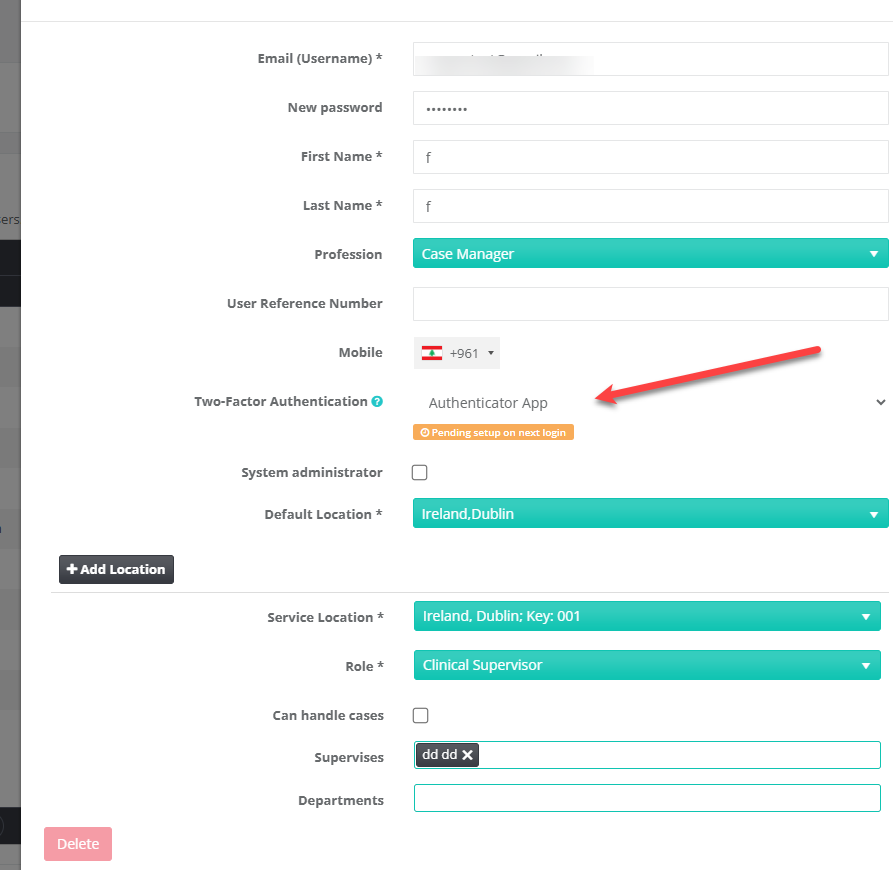
- Navigate to Administration and open the user's profile.
- Locate the Two-Factor Authentication field.
- Select Authenticator App from the dropdown menu.
- Save the user profile.
Once saved, the user's profile will display a status message: "Pending setup on next login". This confirms that the user will be prompted to configure their authenticator app the next time they log in to OpenFIT.
Note: The administrator does not need to configure the authenticator app themselves. The setup process is completed entirely by the user during their next login.
Part 2: User Setup Experience
The following describes what the user will see when they log in for the first time after 2FA has been enabled on their account.
Step 1: Set Up Authenticator App
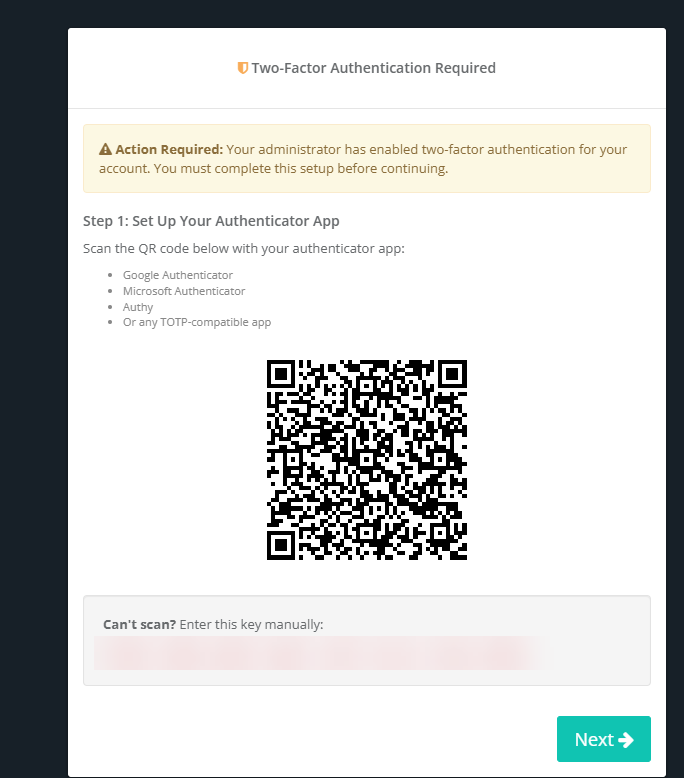
After entering their username and password, the user will see a "Two-Factor Authentication Required" screen. This screen displays:
- A QR code that the user scans with their authenticator app.
- A manual key (displayed below the QR code) for users who cannot scan the QR code.
The user opens their authenticator app, scans the QR code (or enters the manual key), and clicks Next.
Step 2: Verify Setup
The user is then asked to enter the 6-digit verification code displayed in their authenticator app. This confirms that the app is correctly configured. After entering the code, the user clicks Complete Setup.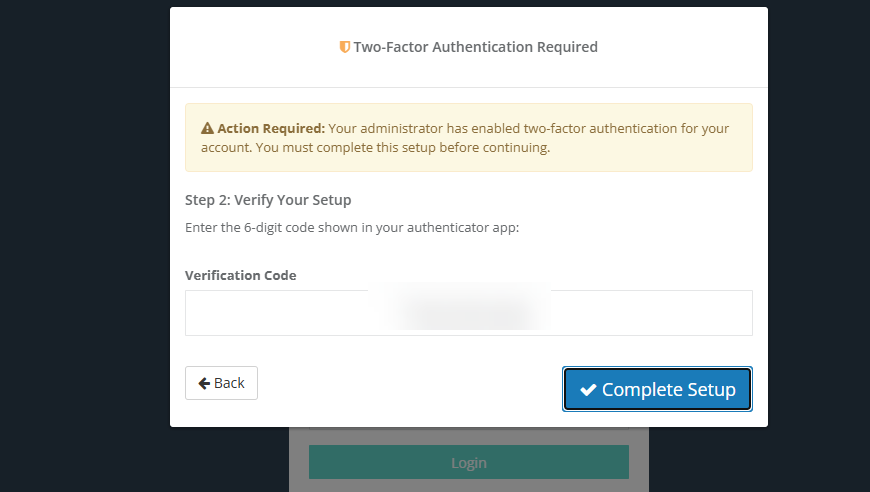
Step 3: Setup Complete
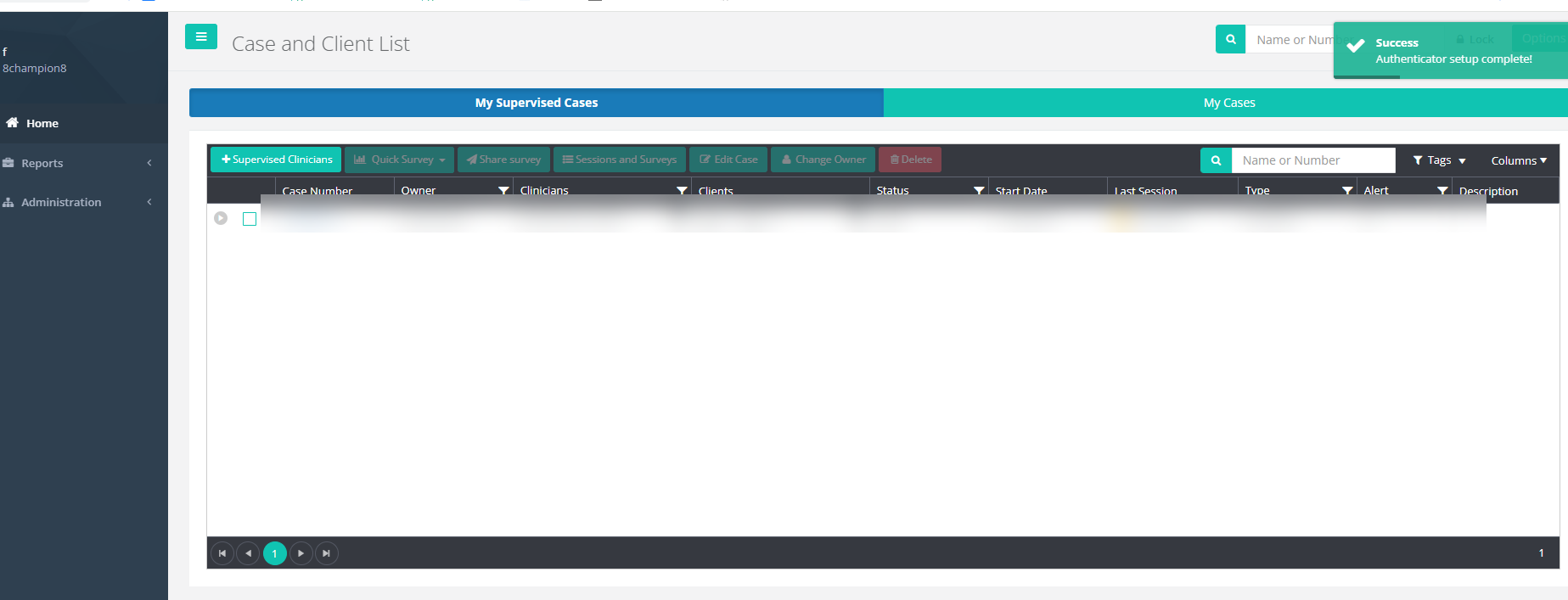
A confirmation screen displays "Setup Complete! Your authenticator has been successfully configured." The user clicks Continue to OpenFIT to access the application. A success notification — "Authenticator setup complete!" — is displayed on the Case and Client List screen.
From this point on, the user will need to enter a code from their authenticator app each time they sign in to OpenFIT.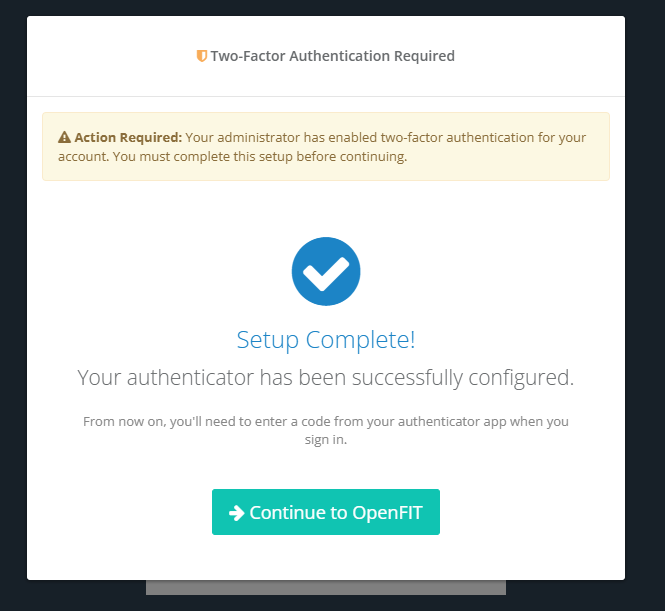
Frequently Asked Questions
Can I enable 2FA for multiple users at once?
Administrators must enable 2FA on each user's profile individually. If you need to enable 2FA in bulk across multiple users, contact the OpenFIT team at support@openfit.care and we can do this for you.
What if a user loses access to their authenticator app?
An administrator can reset the user's 2FA setting by changing the Two-Factor Authentication field back to its default value and saving the profile. The user will then be prompted to set up a new authenticator on their next login.
Does 2FA apply to SSO/SAML users?
No. Users who sign in via SSO/SAML are authenticated through their organisation's identity provider, which will have its own MFA flow. The OpenFIT 2FA setting only applies to users who log in directly with an OpenFIT username and password.
Which authenticator app should users choose?
Any TOTP-compatible authenticator app will work. Google Authenticator and Microsoft Authenticator are the most commonly used options and are available free on both iOS and Android.
Was this article helpful?
That’s Great!
Thank you for your feedback
Sorry! We couldn't be helpful
Thank you for your feedback
Feedback sent
We appreciate your effort and will try to fix the article