OpenFIT supports Single Sign-On (SSO) for iOS and Android. Agencies can enable staff to sign in using their organizational identity provider (such as Microsoft Entra ID). To simplify onboarding, administrators can distribute a QR code that automatically configures the Identity Provider ID in the OpenFIT mobile app.
Administrator: Locate the SSO QR Code
1. Log into the OpenFIT Web Application.
2. Navigate to Administration → Users.
3. In the top-right of the Users List, locate the QR code labeled "Distribute this QR Code to your End Users".
4. This QR code contains the Identity Provider configuration used by the mobile app.
Suggested ways to share the QR code:
• Email it to staff with brief SSO instructions.
• Post it on an internal SharePoint or intranet page.
• Display it in a secure staff-only location where practitioners can scan it.

User: Enable SSO on the OpenFIT Mobile App
Once the administrator shares the QR code, users can enable SSO on their device.
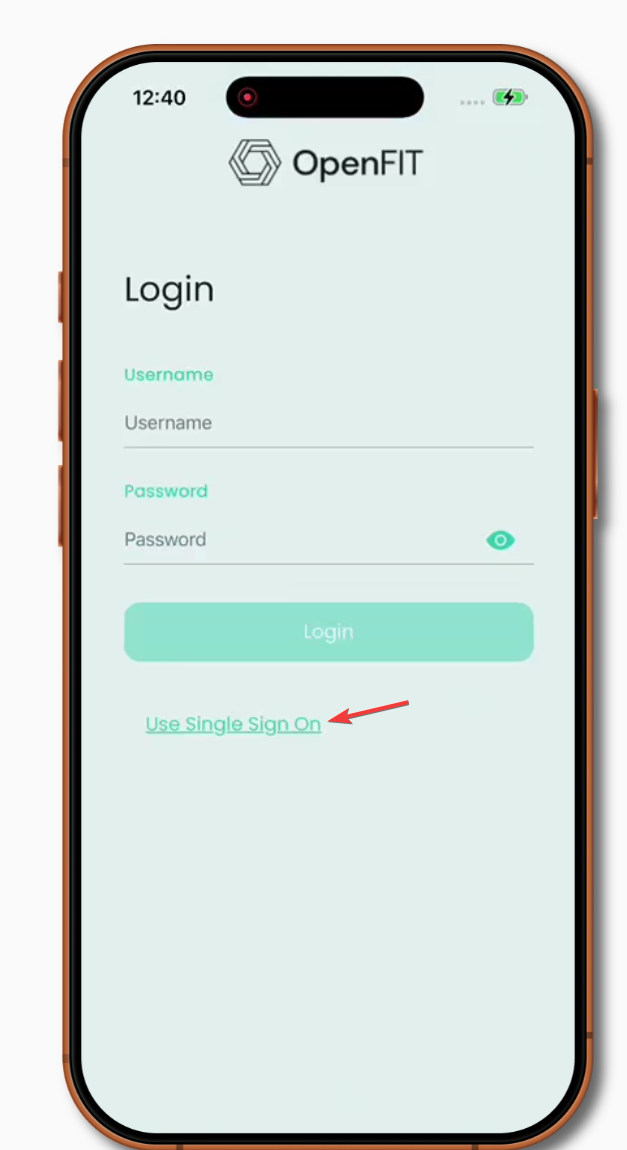
1. Open the OpenFIT mobile app.
2. On the login screen, tap Use Single Sign On (located below the username/password fields).
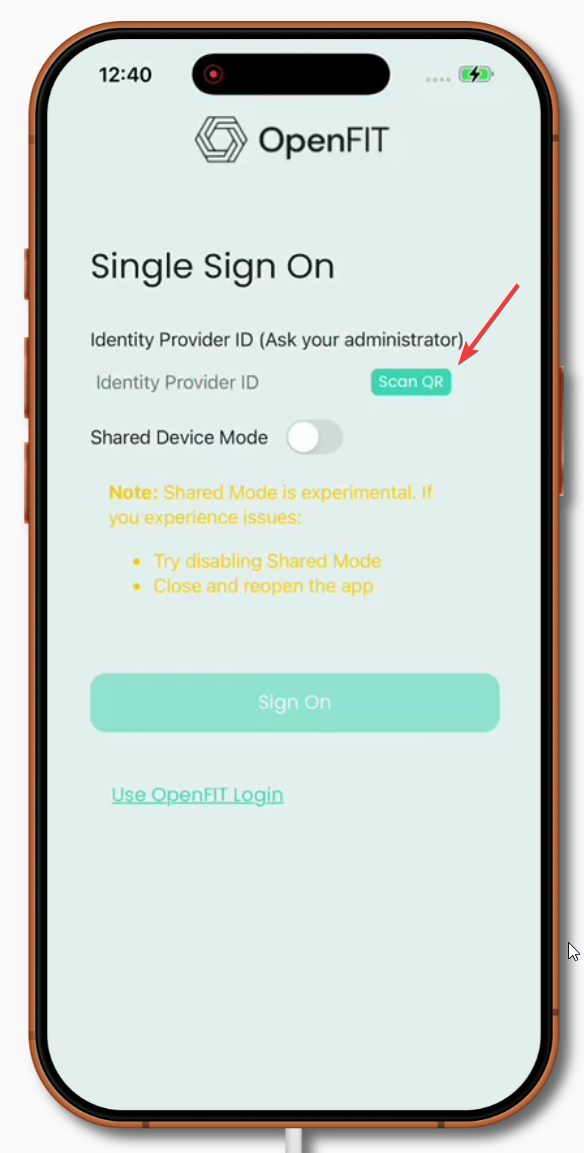
3. Tap Scan QR on the Single Sign On screen.
4. Point your device's camera at the QR code provided by your administrator.
5. The Identity Provider ID will be filled automatically.
6. Tap Sign On to complete authentication.
Tip: You can return to the standard login form anytime by selecting Use OpenFIT Login.
Shared Device Mode (Optional)
The SSO screen includes an optional Shared Device Mode toggle. This mode is intended for environments where multiple practitioners share a single device.
If issues occur:
• Disable Shared Mode and try again.
• Fully close and reopen the app.
(Shared Mode is experimental.)
Summary
• Administrators retrieve the SSO QR code from the Users page in the OpenFIT web portal.
• Users select Use Single Sign On in the mobile app and then choose Scan QR.
• The QR code automatically configures the Identity Provider ID.
• Recommended sharing methods: internal email, SharePoint page, or a secure printed notice.
Was this article helpful?
That’s Great!
Thank you for your feedback
Sorry! We couldn't be helpful
Thank you for your feedback
Feedback sent
We appreciate your effort and will try to fix the article